 Suomi
Suomi Français
 Deutsch
 Polski
Let’s Build Something That Works
From discovery to delivery, our team helps you define and launch a WordPress–Salesforce integration that supports your sales, marketing, and service goals — no fluff, just function.


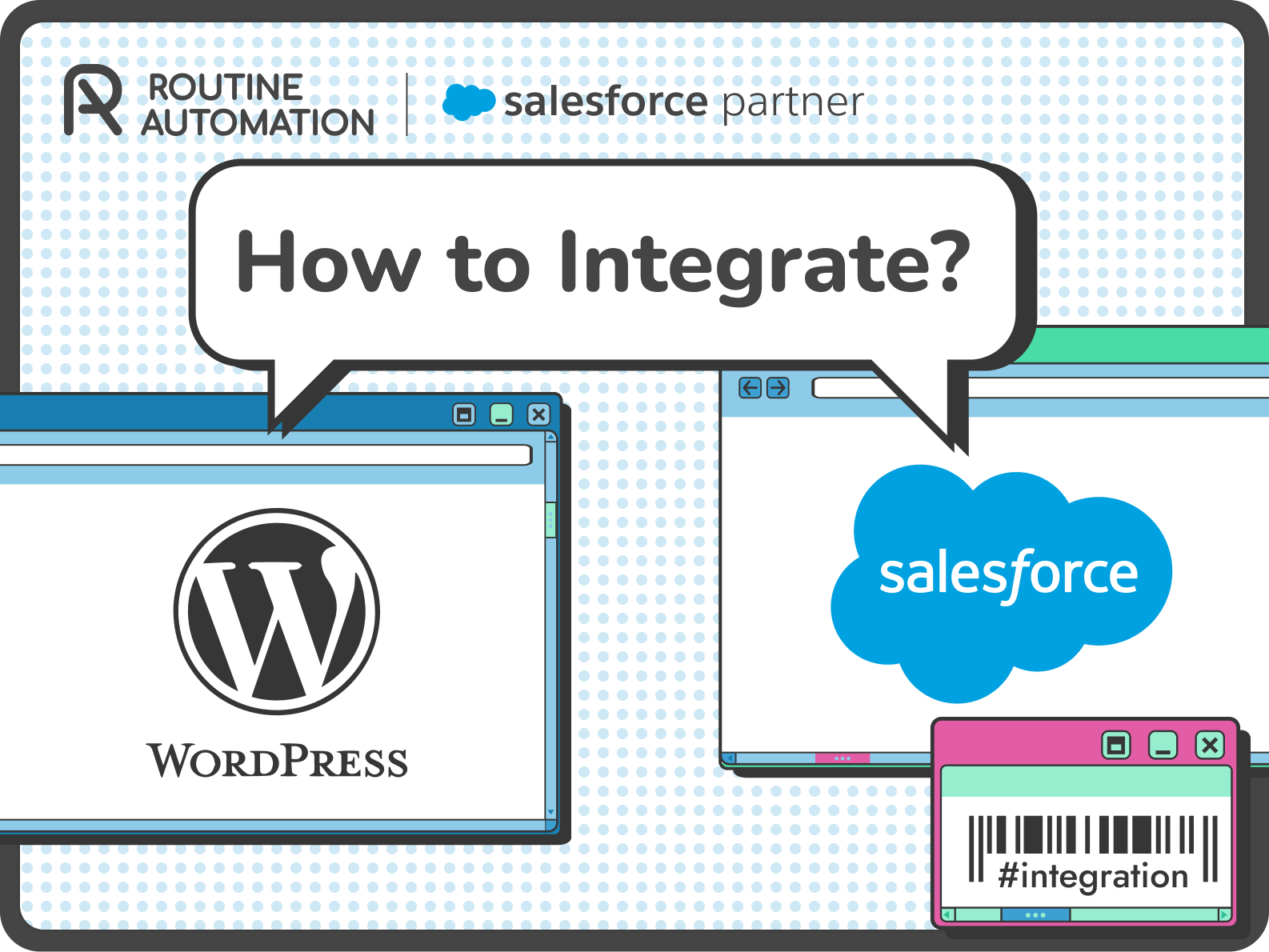

If your website runs on WordPress and your CRM lives in Salesforce, there’s a good chance your systems aren’t talking to each other. That means lost leads, manual data entry, and missed follow-ups, not because your team isn’t sharp, but because the tools aren’t connected.
This guide explores how to fix that.
We’ll break down the smartest ways to handle Salesforce integration WordPress projects, whether that’s using no-code plugins, middleware tools like Zapier, or building a custom REST API setup tailored to your exact workflow. We’ll even cover the Pardot WordPress plugin, form handlers, and what to look for in a long-term solution.
If you’re serious about connecting your tools and streamlining your operations? Routine Automation builds WordPress and Salesforce integration solutions that scale.
Salesforce is built for deep relationships. WordPress is built for great websites. But most businesses still treat them like two totally separate worlds. That’s a problem.
When you don’t integrate Salesforce with WordPress, leads submitted on your site can go missing. Sales teams chase incomplete data. Marketing teams send emails that don’t match what the customer actually wants. Worst of all? Your customers feel the disconnect.
This article is your no-nonsense roadmap to making sure that never happens again.
We’ll cover everything from simple WordPress Salesforce integration plugins to full-blown custom API setups, including WordPress form integration with Salesforce, syncing user data, tracking campaigns, and choosing the right method based on your team’s skills and your business goals.
If you’ve ever wondered how to integrate Salesforce with WordPress, this is where to start.
Disconnected platforms kill momentum. Especially when those platforms are WordPress, where your visitors land, and Salesforce, where your deals are made.
Let’s say someone fills out a form on your WordPress site asking for a product demo. That lead should instantly land in Salesforce. The right rep should get notified. The lead should be tagged by campaign, by geography, and by interest. Sounds simple, right?
But for too many companies, none of that happens.
Sometimes, the lead just sits there. Stuck in a plugin. Or worse, it gets emailed to a shared inbox and forgotten about. Nobody follows up until hours later, if at all. Sound familiar? It happens more often than people admit. HubSpot even found that half of all deals go to whoever replies first. That’s why getting your WordPress to Salesforce integration right isn’t just a technical fix , it’s a revenue thing.
But companies don’t just integrate to improve sales, they do it to fix things like:
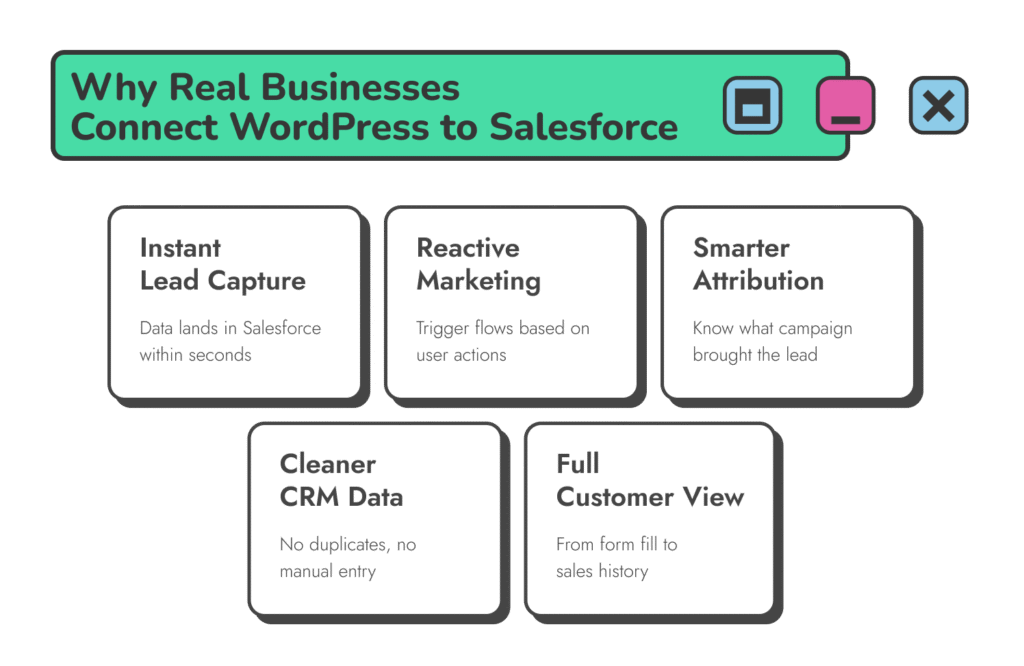

Instant lead capture and routing: Imagine someone filling out a contact form at 3:12 PM. By 3:13, that data is already in Salesforce. It’s tagged with the right UTM source, assigned to the correct regional sales team, and linked to the campaign that drove it. That’s the power of clean WordPress form integration with Salesforce.
Marketing that reacts, not guesses: Let’s say a visitor downloads your pricing guide. That action can trigger an automated drip sequence in Pardot, personalized based on what they viewed. This is where WordPress Salesforce integration strategies turn clicks into context, and context into conversions.
Smarter campaign attribution: You’re spending on Google Ads, LinkedIn, SEO. But are you really seeing what converts? With proper UTM tracking synced via the form handler or plugin, you can tie every lead back to its source, directly inside Salesforce.
Cleaner, more accurate CRM data: When leads flow straight from WordPress into Salesforce, not through five different systems first, the result is tighter data. Fewer duplicates. More complete records. Reps aren’t guessing where someone came from. They know.
One view of the customer, from click to close: Picture this: a support agent gets a case from a customer. When you integrate WordPress with Salesforce, your team can instantly see the form the customer filled out last week, the content they browsed, the ad that brought them in, and their entire sales history.
It’s not about data for data’s sake. It’s about turning your CRM into a real-time reflection of what’s happening on your site. When you integrate WordPress with Salesforce, that’s exactly what you get.
There’s no shortage of ways to connect WordPress with Salesforce, and no shortage of opinions about which one’s best. But here’s the truth: the right method depends entirely on how your team works, what your stack looks like, and how much control you actually want over the process.
For some, it’s just about getting a basic form hooked up to Salesforce. Others need full-on data orchestration across multiple systems, complete with backup logging, retry logic, and airtight security.
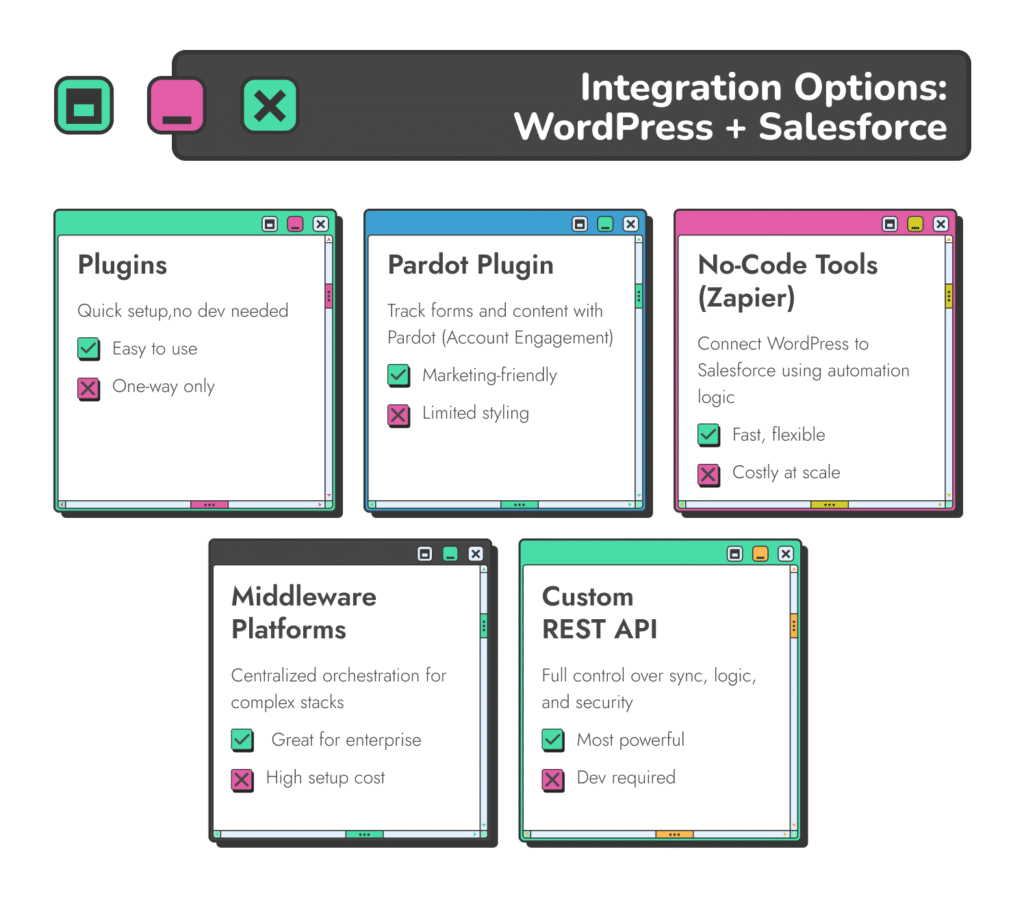
Let’s explore the most common approaches.
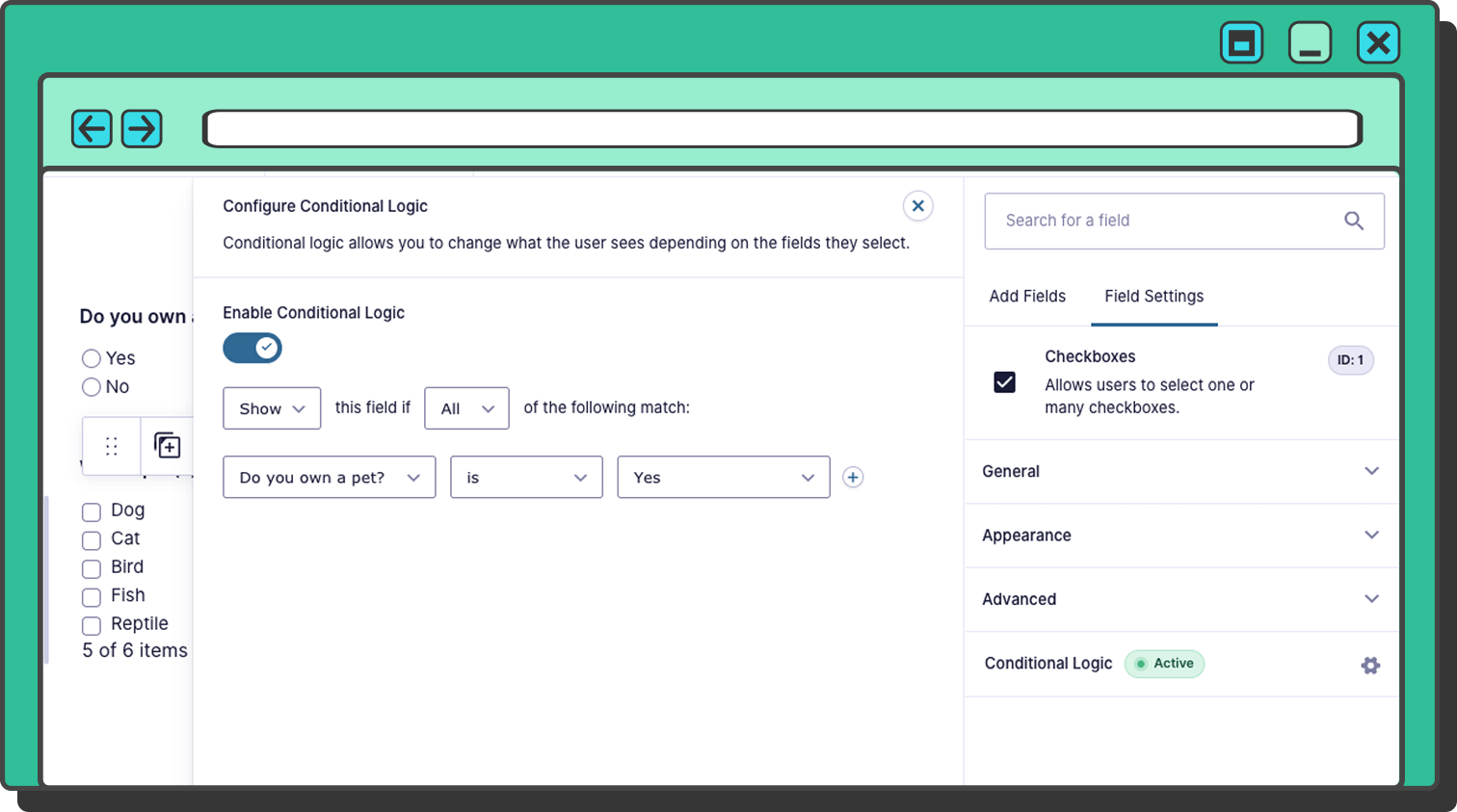
If all you need is a form on your site that creates a lead in Salesforce, plugins will get the job done. Tools like Gravity Forms with its Salesforce add-on or WPForms Pro make this pretty painless. You build the form, map the fields, and that’s basically it.
Even Contact Form 7 can do the trick, especially when you pair it with a Pardot form handler (we’ll get to that).
Real-life example: A SaaS company running a product tour page adds a Gravity Form. As soon as someone fills it out, a lead lands in Salesforce, tagged by campaign, UTM source, and product interest. The sales team doesn’t even need to look at their inbox.
Pros

Fast WordPress Salesforce integration – no developer needed
Good for small teams or MVPs
Integrates cleanly with most CRM fields
Cons

Limited to one-way syncing
Not great for complex logic
Styling can feel clunky, especially with embedded forms
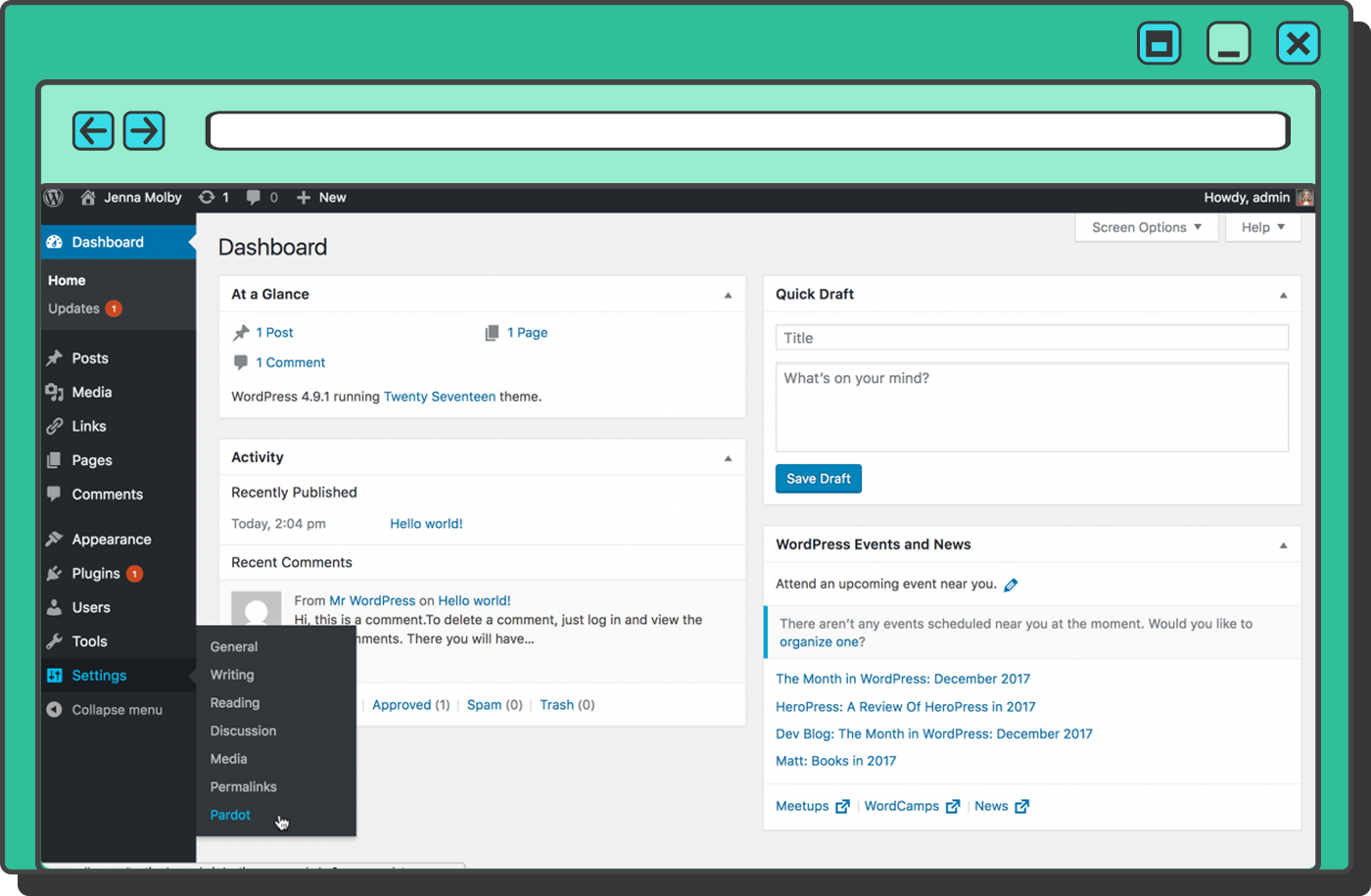
If your marketing team is already using Pardot (aka Account Engagement), Salesforce actually has an official WordPress plugin. It’s not advanced, but it gets the job done – dropping in tracking code, dynamic content, and Pardot forms without needing to touch your theme files.
A typical use case: A B2B company wants to run regional campaigns with dynamic CTAs. The plugin lets them drop in personalized banners and track form conversions straight into Salesforce, without begging their dev team for a CSS fix every week.
Pros
Non-technical teams can use it
Tracking code installs automatically
Dynamic content support is a nice touch
Cons
Embedded forms are iframe-based (limited styling)
No custom object support
Form submissions can’t be styled natively in WP themes
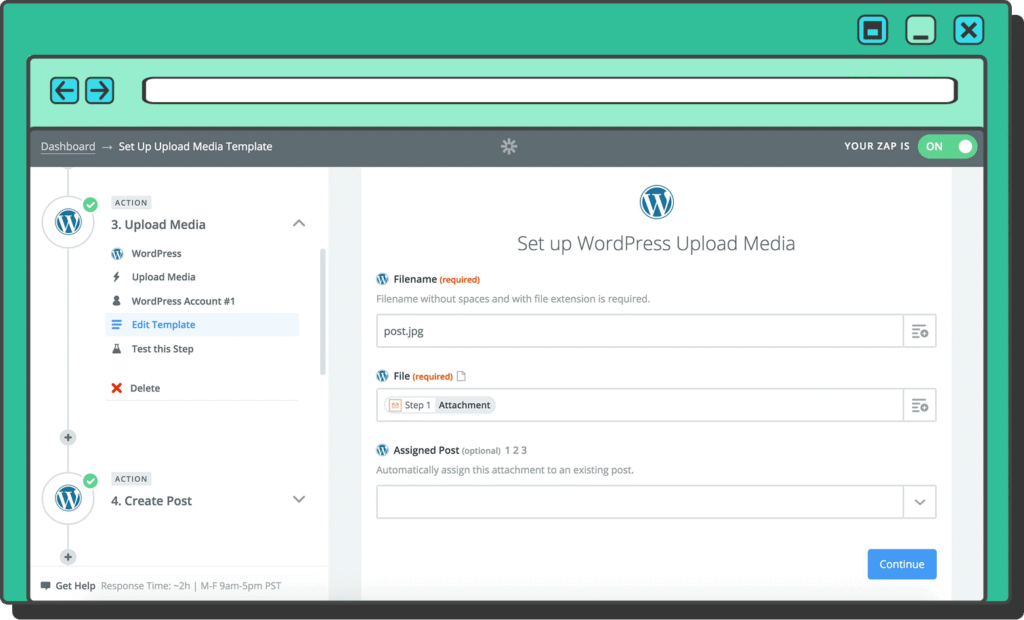
This is where Salesforce CRM integration with WordPress gets a little more flexible. Tools like Zapier are popular because they connect WordPress to Salesforce (and just about everything else) using simple “if this, then that” logic.
We’ve seen this setup: A nonprofit uses a WPForms trigger to send donations into Salesforce, ping a Slack channel, and log everything in Google Sheets. It works, and it saved them hours of manual data entry every week.
Pros
No code, no problem
Great for small workflows that need speed
Plays well with lots of tools
Cons
Can get pricey with higher volume
Debugging failed Zaps isn’t fun
Not built for complex or high-security environments
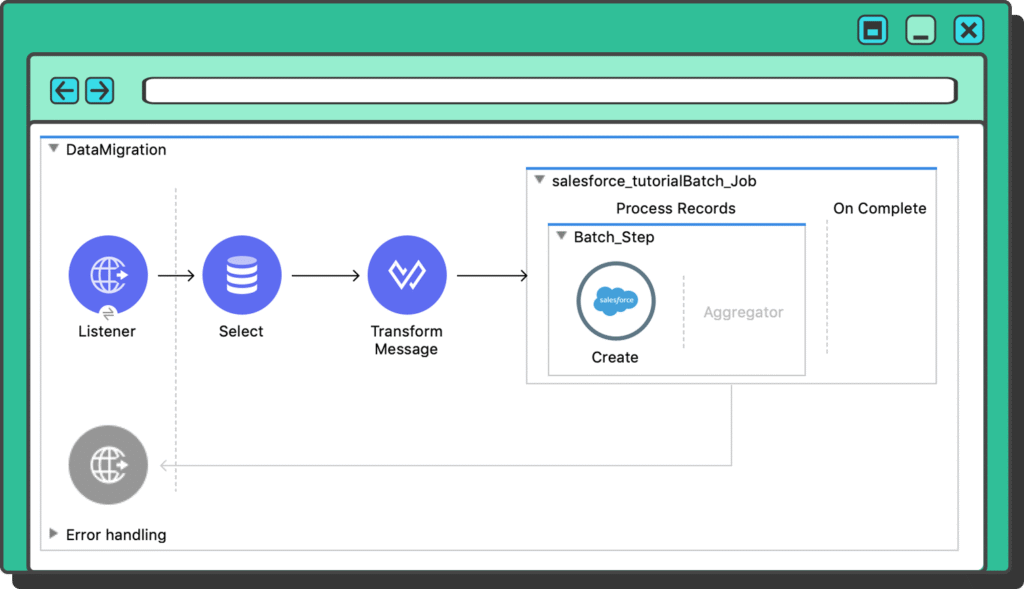
These are the big guns. If you’ve got a tech stack that includes a lot of solutions: Salesforce, WordPress, Shopify, NetSuite, HubSpot, the works, then a middleware platform might be worth the investment.
They’re not cheap. But they’re powerful, especially if you want to keep your integration logic centralized and clean. Many companies use them for integrating HubSpot with Salesforce, and connecting the dots between other systems.
Client use case: A global logistics firm needed to sync contacts from three WordPress sites into Salesforce, while also updating order history from an ERP. We used Tray.io to build it all in one place, with a visual flow that the IT team could actually follow.
Pros
Great for enterprise systems
Scales across departments and teams
Offers visibility into workflows and failures
Cons
Expensive: think enterprise pricing
Needs internal team to manage and monitor
May still hit limits with complex Salesforce logic
This is the “we’re done messing around” option for WordPress Salesforce integration. When you go custom, you’re writing the rules. That means building a secure, direct link between your WordPress site and Salesforce using the REST API, OAuth, and whatever logic you need to match how your team actually works.
It’s not plug-and-play. But when done right? It’s rock solid.
Example: A multi-brand company needed to route leads from seven WordPress sites into different Salesforce orgs. Some leads triggered workflows. Others needed deduplication checks. We built a full API integration with encrypted tokens, fallback logic, and real-time reporting. The client hasn’t touched it in 18 months. It just works.
Pros
Total flexibility
Secure and scalable
Built around your actual process
Cons
Requires development expertise
Takes longer to set up
Needs occasional maintenance (which we handle at RA)
Fast-Track Your Salesforce–WP Integration
Want a setup that actually works for your team, not just the tools? We build WordPress + Salesforce integrations that match your real-world process, without overcomplicating it.
If your site has one or two forms, your lead volume isn’t crazy, and you just need the data to land in Salesforce with the basics: name, email, maybe a campaign tag, plugins will probably do the job. They’re quick to set up, don’t require a developer, and can be surprisingly powerful with tools like Gravity Forms or WPForms Pro.
Plugins are a great place to start for WordPress integration with Salesforce. But they’re not where most growing businesses finish. Things get messy when:
You have conditional routing (e.g., leads from Site A go to Team A, leads from Site B go to a different pipeline)
You’re syncing with custom objects or need to create related records (like Opportunities or Cases)
You want two-way sync: say, to update a user’s access on the WordPress side based on a field change in Salesforce
You’re dealing with multiple regions, brands, or languages
At that point, plugins start to feel limited. You end up hacking things together, hoping it holds.
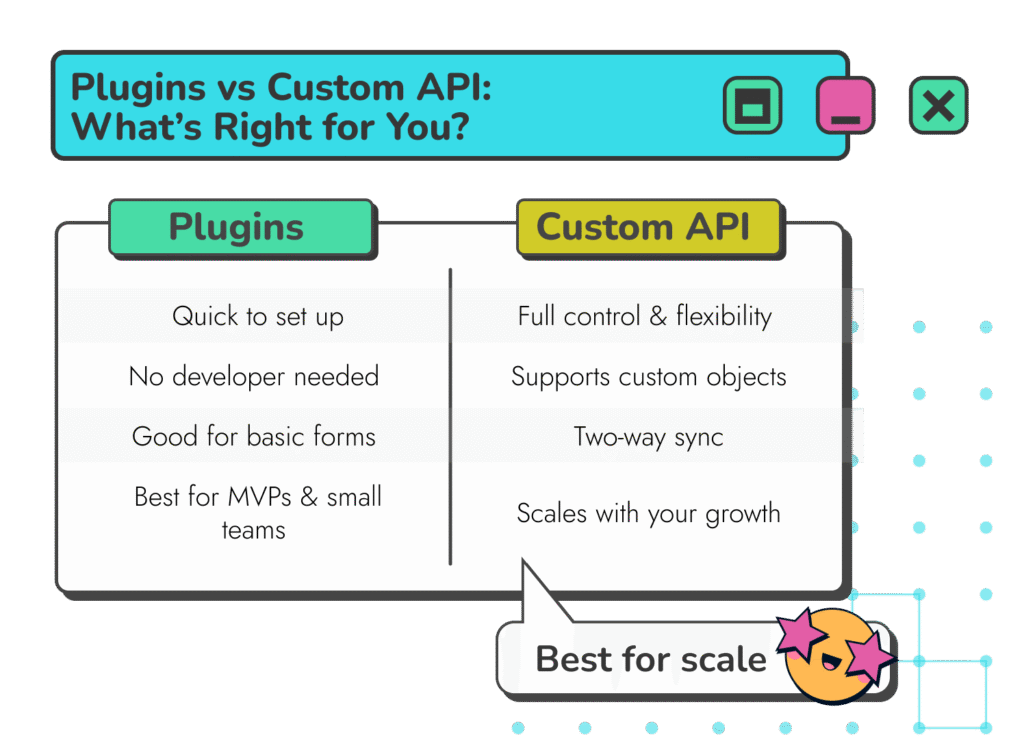
When your systems are growing, when your processes are unique, or when your industry demands tight compliance, custom WordPress Salesforce integration wins.
A REST API-based Salesforce integration wordpress setup gives you full control. You decide what data moves, when, and how. You control the logic. The security. The error handling. The user access. The fallback plan.
We had a SaaS client not long ago with five different WordPress sites. Trial forms, demo requests, support tickets, all flying in from different places. They needed those leads scored and routed properly into Salesforce, depending on where they came from and what they did.
We built the entire system custom using the REST API. Now? It runs quietly in the background. If you’re holding your setup together with plugins and luck, this is your sign to rethink it.
If plugins are like prebuilt IKEA furniture, custom API integrations are the handmade hardwood table. They take longer and need precision, but they’re far more scalable.
A REST API-driven WordPress and Salesforce integration isn’t overkill, not if you care about data security and having something that actually lasts. It’s not for everyone, sure. But for teams tired of hitting plugin limits, it’s usually the best move.
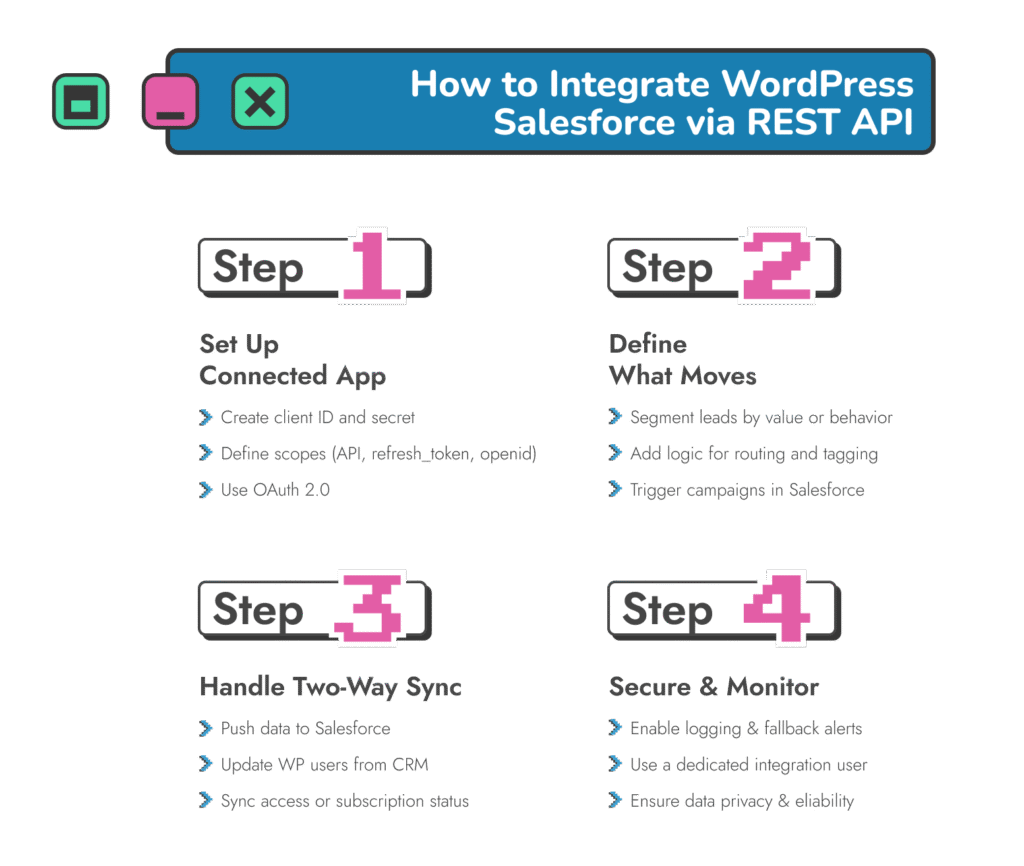

This is where the handshake starts. You create a “Connected App” inside Salesforce that acts like the gatekeeper. It generates a client ID and secret, defines scopes (permissions), and lets you control which parts of Salesforce your integration can access.
Typical scopes:
API for data access
refresh_token to keep the session alive
openid and id if you’re also working with user records
We recommend using OAuth 2.0 for authentication: it’s secure, modern, and supports refresh tokens, so you don’t have to reauthenticate every hour.

Are you pushing every lead from every form into Salesforce? Or only those above a certain value? Are you tagging form submissions with UTM data? Segmenting by product interest? Triggering automations once they hit a campaign?
You can build logic that says:
“If the user selects Product A AND their company size is over 100, tag them as Enterprise and assign to Team X.”
Or…
“If a user submits a support form and is already a Contact in Salesforce, convert the submission into a Case and notify the service team.”
This is where WordPress Salesforce form integration gets smart.

Pushing data into Salesforce is one thing. But sometimes you also want data coming back the other way, updating WordPress user profiles, triggering gated content, or syncing subscription status.
With a two-way sync, you can:
Show/hide content based on Salesforce fields
Update WordPress users when their plan changes in Salesforce
Deactivate accounts if a contract ends
It’s not hard. But it does require a thoughtful approach to data structure and timing.

Security and error handling matter, especially when customer data is involved.
Every custom integration we build includes one key thing: solid logging. If something breaks, like a token expiring or Salesforce going quiet for a second, the system logs it, flags it, and lets someone know right away. You won’t be caught off guard, and neither will your customers.
Pro tip: Set up a dedicated integration user in Salesforce. This makes it easy to audit changes and avoid tying API calls to personal logins that might expire or get disabled.
Custom integrations demand the support of the best Salesforce integration partner. That means a partner that can actually adapt to your needs, sidestep plugins, and fix problems. At Routine Automation, our team excels in tailoring unique integration options for specific companies.
We don’t just apply the same strategy for everyone, we match the integration to client-specific workflows. For example, a multinational SaaS company came to us with five public-facing WordPress sites, each with different form types, languages, and lead sources. Leads were coming in… somewhere. But no one was entirely sure where they were going.
Sales reps were manually sorting form submissions. Marketing was pulling UTM reports from Google Analytics and trying to match them with Salesforce leads.
We started with a discovery workshop to map their workflows and data flow. Then we designed a Salesforce integration WordPress setup that actually matched the business logic.
What we delivered:
A secure REST API connection from each WordPress site to Salesforce
Dynamic lead routing based on form type, site language, and industry
Full UTM capture and campaign tagging inside Salesforce
Real-time sync of lead status updates back into WordPress user profiles
An error logging dashboard to track failures, retry logic, and performance
Sales knew exactly where new leads were coming from, and what they were interested in. Marketing finally had clear attribution data. Support could see the customer’s full journey without switching tabs.
That’s what happens when you integrate WordPress with Salesforce the right way. You stop firefighting and start scaling.
Ready for a Smarter Setup?
Whether you’re wrangling multiple websites or tired of chasing down lost leads, our experts will design a WordPress–Salesforce integration that aligns with how your business actually runs.
There’s a reason we lean hard toward custom integrations, especially when the stakes are high. Plugins and middleware can work fine in a pinch. But when it comes to long-term success, a tailored WordPress integration with Salesforce usually wins out in five key areas.
Full Control: Want to assign leads based on product tier, sales region, and lead score, all at once? You can. Need to prevent duplicates across three different form types? Easy. Custom means you set the rules. The logic isn’t limited by plugin defaults or middleware templates.
Better Security: A lot of plugins cut corners. API keys stored in plain text. No encryption. Weird old authentication setups. With a custom build, we lock things down properly, OAuth 2.0, scoped permissions, and field-level control. You know what’s being sent and where it’s going.
Improved Scale: One site in one language? You’ve got options. But if you’re managing multiple brands or regional teams, you’ll outgrow plugins fast. Custom setups let you route leads by language, country, or campaign, automatically, cleanly, and without post-it-note workflows.
Easier Maintenance: Ironically, custom is often simpler long-term. When you control the code, there’s no surprise update that breaks your integration. No third-party plugin that gets abandoned. No vendor whose pricing triples overnight. If something changes in your sales process, you can adapt your integration.
One Partner: We’ve worked with companies who had five different tools trying to talk to Salesforce, and no one who actually knew how it all fit together. It’s a nightmare. With a single custom integration and one trusted partner you always know who to call when something needs adjusting, scaling, or debugging.
Plus, with a partner specializing in custom solutions, you can connect other systems too. You might move onto a Shopify and Salesforce integration next, or connect Shopify to SharePoint.
If you’ve made it this far, you’re probably not just browsing. Maybe you’ve already tried a plugin and hit its limits. Maybe your marketing team is tired of cobbled-together workflows. Maybe you just want this whole thing to stop being “that weird process no one understands.”
Whatever the reason, it starts with a conversation. Here’s what getting started looks like:
Audit: We review your current WordPress and Salesforce setup, forms, logic, and goals.
Scoping: We map out the data flow, lead handling, and any automation needs.
Roadmap: You get a clear integration plan: cost, timeline, deliverables. No surprises.
Delivery: Our team builds, tests, and launches the integration. And yes, we stick around to support it.
Whether your process is simple or sprawling, our job is to make it make sense, for your team, your data, and your growth goals.
You’ve got a few choices. Plugins like Gravity Forms work if it’s just a basic form. But if you need more, like lead routing, UTM tracking, or syncing back, custom integration is the way to go.
Not with a plugin. You’ll need an API pulling product data from Salesforce into WordPress. We’ve built this kind of thing for clients with large catalogs, it’s doable, just needs planning and some dev work.
That really depends on what you need. Plugins are cheap and fast, but they have limits. A custom Salesforce CRM integration with WordPress costs more upfront, sure, but it’s far more stable and won’t blow up every time something updates. It’s an investment, not a workaround.
Not always. If you’re just using a plugin, you might not. But anything with multiple forms, regions, or logic? Yes, a developer (or team like ours) is a good idea. It saves time and stress.
Yes, Gravity Forms is a popular one. WPForms too. They’re great if your needs are simple. But once you need logic or syncing with campaigns, they start to feel limited. That’s where custom comes in.