 Suomi
Suomi Français
 Deutsch
 Polski
Let’s Talk About Your Salesforce Org
Bring us the score, the recurring faults, or the project that keeps getting pushed back. We’ll help you work out what needs an audit, what needs rebuilding, and what can be left alone.


A Salesforce health check might not be something most teams look forward to, but it’s definitely worth doing before users start complaining, and issues start holding teams back. With Salesforce, small problems can easily make the whole system a little harder to trust one error at a time.
Salesforce’s native Salesforce security health check gives admins a solid first read on the security setup by comparing selected settings with a standard or custom baseline. Still, that, percentage only tells one part of the story.
Here we’ll explain how to run the check, work out which findings genuinely need attention, make changes without knocking out users or integrations, and decide when a broader Salesforce org health check is needed to examine data, access, automation, code, licenses, performance, integrations, backup, and recovery.

Salesforce Health Check is the security page inside Setup that compares an org’s current settings with either Salesforce’s own baseline or a custom one built around company policy. It returns a score out of 100, then points to the settings sitting furthest from the standard you selected.
Higher-risk gaps carry more weight, so one weak session control can drag the result down more than several smaller issues.
The tool reviews password rules, session settings, login controls, trusted IP ranges, clickjack protection, and selected certificate or token settings. Salesforce is also rolling out checks covering MFA, SAML, forced session termination after a password reset, and the share of active internal users assigned the System Administrator profile. Those newer checks won’t appear in every org at the same time, but they’re worth considering.
The wording is where things get muddled. People searching for health check Salesforce guidance often find two very different services described as though they’re the same thing.
Salesforce Security Health Check usually means the native feature inside Setup. A Salesforce org health check is the bigger job. It may involve a certified Salesforce partner, and covers architecture, permissions, data quality, Flow and Apex, integrations, licenses, storage, performance, backup, reporting, and whether people still use the CRM properly.
Find the Problems the Score Misses
Get a closer look at the data, automation, access, integrations, recovery gaps, and technical debt sitting outside the native Health Check.
Salesforce rarely becomes difficult because of one awful release. It happens one sensible-looking decision at a time. A manager needs access for two weeks. An integration gets a dedicated user. Somebody installs a package for a pilot. A Flow is copied because editing the original feels risky. Then nobody circles back.
A regular review of a Salesforce health check report catches the leftovers:
What builds up | What can go wrong |
Excessive access rights | Employees can view, export, or change records outside their actual role |
Inactive users | Old accounts remain another route into customer or commercial data |
Outdated security settings | Session, login, or password controls stop matching company policy |
Overlapping automation | Two Flows update the same field, trigger duplicate work, or fail under heavier volume |
Technical debt | Small changes take longer because nobody knows what depends on what |
Unused licenses, fields, and packages | The company pays for tools people ignore while old components add maintenance and access risk |
Poor data quality | Forecasts, routing, reports, and AI features work from incomplete or conflicting records |
That last row is easy to underestimate. Salesforce’s 2026 State of Data and Analytics research found that data leaders consider 26% of organizational data untrustworthy. Another 84% said their data strategies need major work before their AI plans can succeed.
The point of a regular health check for Salesforce is to spot the account that should’ve been closed, the Flow that fires twice, or the field poisoning a board report. That reduces data exposure, gives compliance teams better evidence, keeps releases steadier, and helps users trust Salesforce enough to stop rebuilding it in spreadsheets.
Salesforce puts its native Health Check inside Setup. Any admin with the correct permissions can reach it without installing a thing. Opening the page is simple. Deciding whether a recommendation will break SSO, block a user, or knock an integration offline takes more thought.
Don’t get stuck asking “how long does a Salesforce health check take”, follow the right route.
Turn the Score Into a Fix Plan
Get a Salesforce audit that ties security findings to business risk, dependencies, owners, and the work needed to resolve them safely.
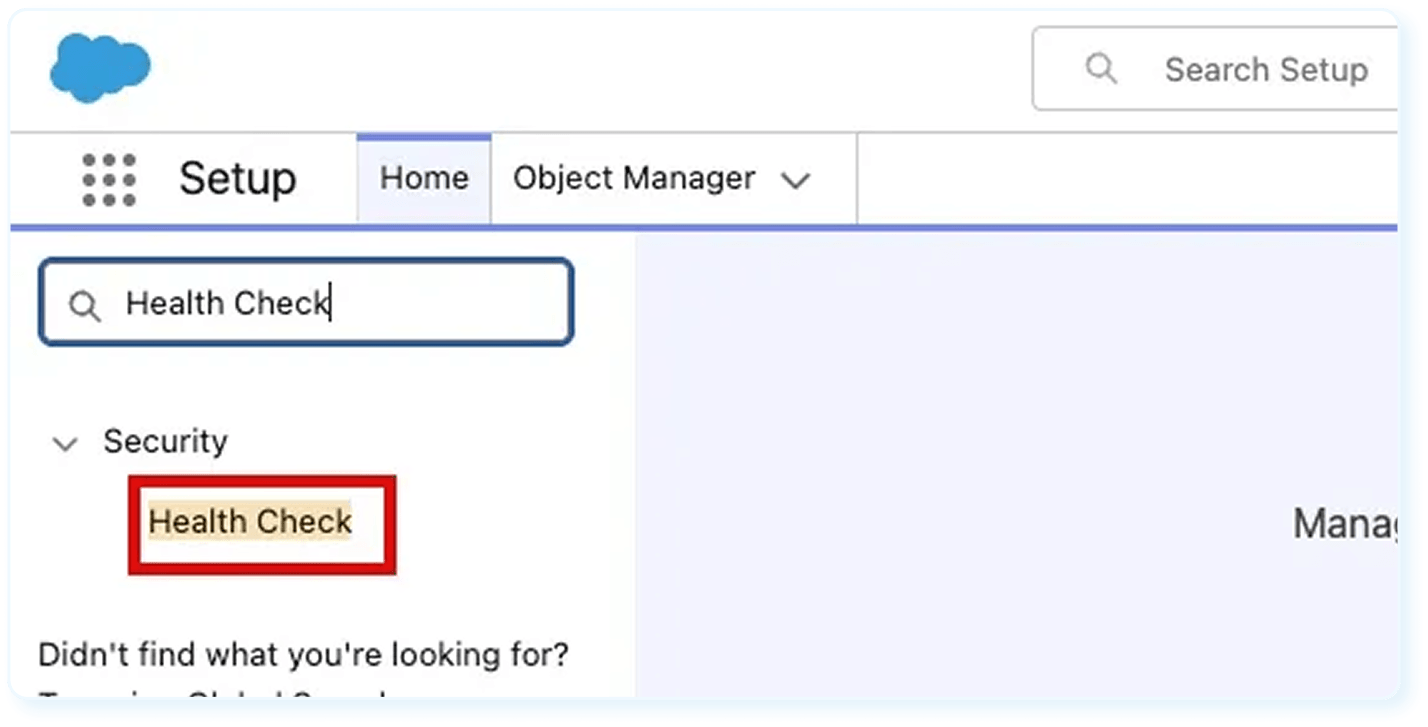
Use this path:
Setup → Quick Find → Health Check
The dashboard shows the current score, its grade, the selected baseline, and findings grouped by risk. Each row compares the org’s current value with the value expected by that baseline, which saves admins from hunting through several Setup menus before they know where the gaps are.
The native security health check in Salesforce doesn’t need an external application. Users need the View Health Check permission, or the corresponding Security Center access, to review the page and export a baseline. Importing a custom baseline requires Manage Health Check or suitable Security Center permissions.
Weekly score-drop alerts are available too. Salesforce switched them on by default for production system administrators on April 15, 2026, and lets teams add as many as 100 recipients. Use a monitored security or admin mailbox so the warning doesn’t spend a week waiting in somebody’s vacation inbox.
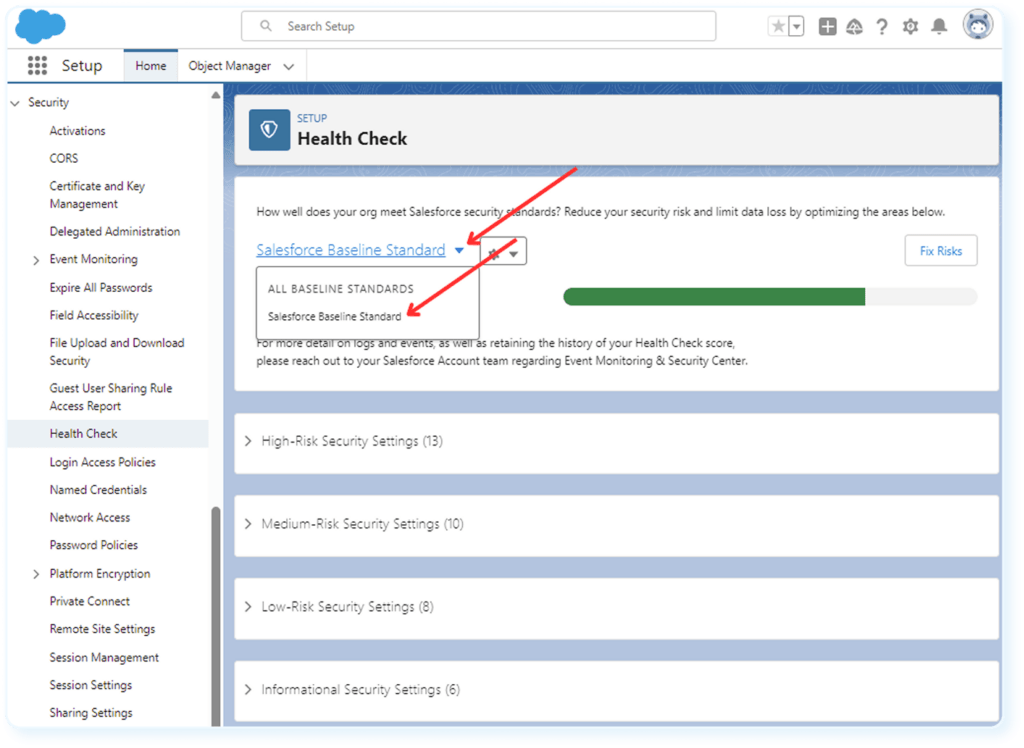
Salesforce gives you two choices:

Salesforce Baseline Standard: Salesforce’s recommended values and risk categories.
Custom baseline: An approved company standard reflecting internal policy, contractual requirements, or the level of risk the business has agreed to accept.
A bank may need a baseline shaped around financial-sector controls. Salesforce allows up to five custom baselines. Each starts with an exported copy of the standard baseline, must retain all existing Health Check settings, and cannot exceed 20 KB.
A healthcare company may set stricter session or access rules because employees handle sensitive patient information. That custom standard should come from a real policy discussion involving Salesforce, IT, security, and compliance. If you’re unsure, a Salesforce consulting partner like Routine Automation can walk you through Salesforce health check best practices.
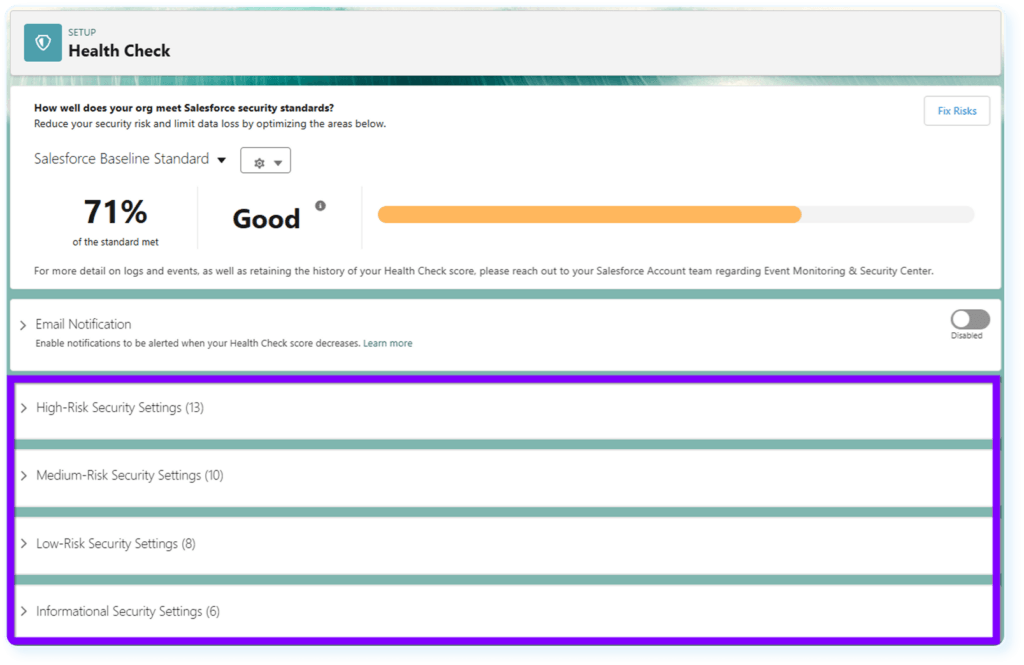
The Salesforce health check score will show you how close your current settings are to the selected baseline, ordering settings into high, medium, and low risk. There are also informational findings, but they don’t influence your score.
The official grades are:
Score | Salesforce grade |
90% and above | Excellent |
80% to 89% | Very Good |
70% to 79% | Good |
55% to 69% | Poor |
54% and below | Very Poor |
A perfect score only proves that every included setting matches the chosen baseline. The org could still have bad data, confused access rules, brittle Flows, and a recovery plan nobody has tried. Read the gaps before celebrating a 92%. One serious session control can outweigh a screen full of smaller passes. Salesforce also changes the signals behind the calculation, which can move the score after a release without any admin changing a setting.
Review the High-Risk health check score Salesforce gives first, especially findings tied to:

Weak authentication requirements.
Broad login access.
Unsafe session settings.
Too many users holding administrative access.
Loose API or data controls.
Before anyone edits the setting, trace where it leads. Check who uses it, which systems call it, and whether tomorrow morning starts with locked accounts or failed jobs.
A session restriction could affect remote employees. A login policy could interfere with SSO. Tightening an API-related control might stop an ERP sync or a nightly billing job. Health Check now includes a signal based on the percentage of active internal users assigned the System Administrator profile, but it still won’t tell you which named administrator has access they don’t really need. That takes a separate permission review.
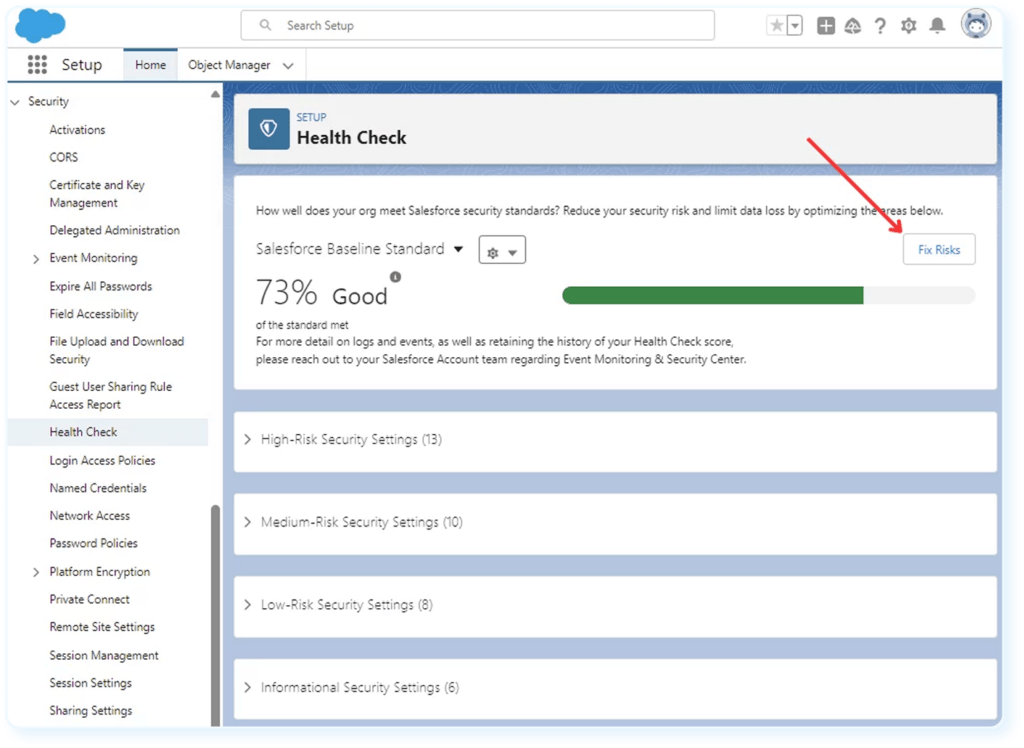
Salesforce health check tools give administrators two routes:
Use Edit to open the relevant Setup page and change one setting.
Use Fix Risks to apply supported values from the selected baseline without leaving Health Check.
Fix Risks is handy, but be cautious.
Before changing anything substantial, check:
Business requirements.
Connected applications.
API and integration users.
SSO and authentication routes.
Portal and mobile access.
Internal security and compliance policies.
The rollback route if the change causes trouble.
Some findings can’t be fixed through the native button and require manual investigation. Whichever route you take, test material changes in a representative sandbox where possible. Capture the current setting first, take the appropriate data and metadata backup, and verify users and integrations again after deployment. A backup helps with recovery, but it won’t replace a proper backout plan.
The team should leave Salesforce Health Check with more than a percentage and a screenshot. Record:
Assessment date.
Org and environment.
Selected baseline and version.
Current score.
Identified risk.
Affected users or systems.
Responsible owner.
Remediation priority.
Test requirements.
Target date.
Final decision or resolution.
Date for the next review.
A good Salesforce Health Check report leaves receipts. It records why the team changed one setting, postponed another, and accepted a third. That saves a lot of guesswork during compliance checks, admin handovers, and later reviews.
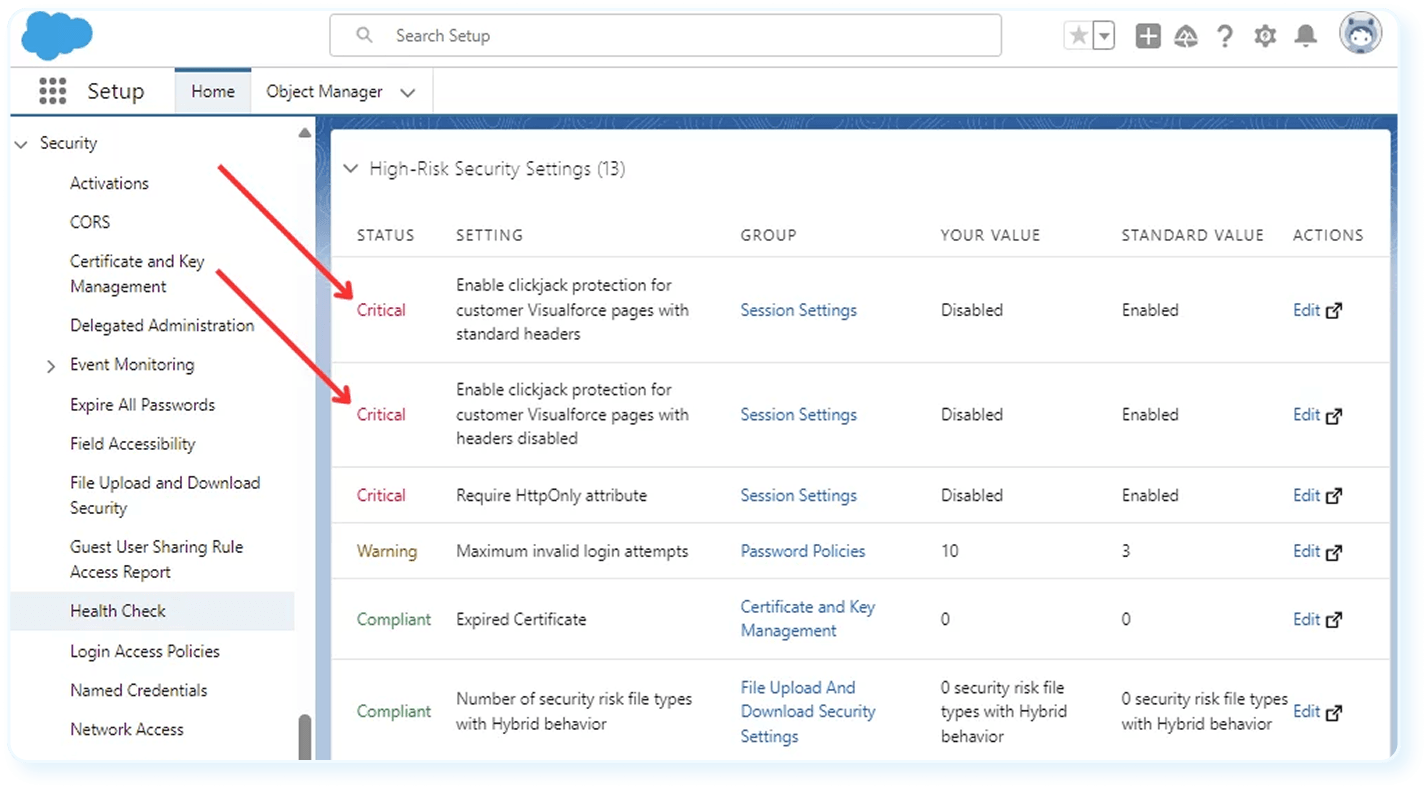
The health check score Salesforce gives you should tell you what Salesforce found, why anyone should care, and what has to happen next. Start with five details in the native results:
The org’s current setting.
The value required by the selected baseline.
The assigned risk category.
The likely security or operational impact.
The change needed to close the gap.
The technical wording can make a finding look smaller than it is. A weak session timeout may leave an unattended, authenticated session open longer than company policy allows, which matters on shared computers, lost devices, and machines sitting in public spaces.
Sort the findings into three working groups:
Fix immediately: The exposure is serious, the dependencies are understood, and the change can be made safely.
Investigate and test: The setting needs attention, but changing it could affect SSO, users, integrations, or automated jobs.
Accept or postpone: The business has a documented reason for leaving the setting as it is, plus an owner and a date to review that decision.
Finding | Potential impact | Priority | Recommended action | Owner |
Weak password policy | Greater risk of account compromise | High | Match the approved security policy and test login routes | Salesforce admin |
Inactive privileged user | Unnecessary access to sensitive records and Setup | High | Confirm ownership, freeze access, then deactivate if appropriate | Admin and IT |
Outdated session setting | Authenticated sessions remain available longer than policy permits | Medium | Test the stricter value, then update the setting | Security team |
The native results won’t assign owners, estimate cost, map business dependencies, or sequence the remediation work. That is why the finished report needs to be more than a screenshot with a score circled at the top.
The native Security Health Check Salesforce gives you is useful, but it still has a narrow job. It compares selected security settings with a baseline. A high score doesn’t prove the org is well built, easy to maintain, running cleanly, using licenses wisely, or ready for another few hundred users.
Plenty can sit outside that percentage:

Duplicate, incomplete, or badly owned records.
Apex triggers that run inefficient queries or clash with other code.
Several Flows updating the same field.
Integrations delivering records late, twice, or not at all.
API use creeping toward org limits.
Storage filling with old files and records.
Custom objects and fields nobody can explain.
Managed packages that still hold permissions but serve little purpose.
Licenses assigned to people who barely log in.
Reports built on disputed fields or inconsistent KPI definitions.
Users keeping the real process in spreadsheets, Slack, or email.
Releases moving into production without dependable testing or rollback steps.
Workflow Rules and Process Builder are a useful warning. Salesforce ended support on December 31, 2025, yet old processes may continue running in production. Health Check won’t tell you that a key approval still depends on automation nobody has tested recently or feels good about changing.
Once those questions appear, the work has moved beyond a security dashboard. You need a wider audit of the org itself, which could mean starting a search for the best Salesforce consulting firms.
A health check for Salesforce usually starts because something feels off. Maybe reports look wrong, releases take too long, or nobody knows who owns an integration. A full review follows those clues across permissions, data, automation, costs, and performance.
Area | What the review checks | What can go wrong |
Security and access | Profiles, permission sets, admins, inactive users, sharing rules, connected apps, MFA, and sessions | People can see too much, while others build workarounds because access is too tight |
Data and data model | Duplicates, missing values, field use, ownership, validation, relationships, backup, and recovery | Forecasts become shaky, routing breaks, and automation or AI acts on the wrong record |
Automation and code | Flows, legacy automation, Apex, failed jobs, test coverage, inefficient queries, and old code | Processes fire twice, fail under volume, or become too risky to change |
Integrations and APIs | Authentication, mappings, sync direction, API use, middleware, errors, retries, and monitoring | A connection stays “live” while records arrive late, twice, or missing key fields |
Performance and limits | Storage, large data volumes, reports, scheduled jobs, record locks, queries, and governor limits | Pages slow down, jobs fail, and users start working outside Salesforce |
Licenses and packages | Assigned versus active licenses, paid features, permission-set licenses, and AppExchange packages | The company keeps paying for unused tools that still carry permissions and maintenance work |
Reporting and adoption | KPI definitions, required data, dashboards, usage, exports, and feedback from each team | Leaders stop trusting reports, while employees move the real process into spreadsheets or email |
For crowded integration estates, it may be worth looking at the best Salesforce integration services to narrow down whether the problem needs configuration work, middleware, or a rebuild. Installed products deserve the same scrutiny.
See the Whole Salesforce Org
Find the access, data, automation, integration, performance, and licensing problems the native score cannot explain, then leave with a prioritized fix plan.
One thing worth saying is there isn’t one Salesforce health check tool that can tell you whether the whole org is secure, fast, affordable, recoverable, and pleasant to maintain. Each option catches a different kind of trouble. The useful work comes from combining the evidence, then checking it against what the business actually does.
Tool or method | Main purpose | What it can find | Where it stops |
Salesforce Health Check | Security configuration | Baseline gaps, risk categories, and the current score | It doesn’t review data, code, integrations, costs, or adoption |
Security Center Essentials | Single-org security monitoring | Health Check history plus six other security metrics | Weekly collection, 30-day Health Check history, and no cross-org view |
Full Security Center | Security oversight across several orgs | Policies, alerts, authentication, user access, and security trends | Licensing and product requirements apply |
Scale Center | Performance and system pressure | Slow Apex, Flow issues, expensive queries, report delays, limits, and record locks | It can find the technical drag, but it can’t tell you whether the process makes sense |
Lightning Usage App | User and page activity | Active users, license use, common pages, slow pages, and Classic switching | It won’t explain why people avoid a screen or export everything to Excel |
Salesforce Code Analyzer v5 | Static analysis of code and metadata | Security, quality, and maintainability problems in Apex and other supported source | It cannot judge whether the business logic is right |
Manual review | Business and technical assessment | Architecture, ownership, data, workflows, dependencies, integrations, and priorities | It takes time and people who know what they’re looking at |
Salesforce Optimizer used to be an option too, but Salesforce retired it on June 1, 2026, after earlier removals for Hyperforce and non-Hyperforce orgs.
Security Center Essentials is free across Salesforce editions and keeps 30 days of Health Check history. Scale Center is also free in supported production orgs and full sandboxes for Professional, Enterprise, Unlimited, Signature, and Scale Test customers.
If you’ve been working with a partner on Salesforce implementation services, like Routine Automation, they can help with choosing the right Salesforce health check tools. RA doesn’t sell its own scanner, but it can pick appropriate tools, add the manual checks those tools can’t perform and turn the findings into a plan someone can use.
Check the native security page monthly or quarterly. Run a wider org review at least once a year if the setup is stable, and shorten that gap when Salesforce changes quickly or carries more risk. You may also want to run additional checks after adding the best Salesforce apps to your system.
Situation | Sensible timing |
Stable org with limited change | Native check quarterly, broader review annually |
Regulated or security-sensitive org | Native check monthly, wider review every six months |
Large org with heavy custom work | Review after major releases and at least every six months |
New implementation or rebuild | Before launch and again after users have worked in it |
Migration or org consolidation | Before planning, then after data and automation have moved |
Major integration added | Before production and after the first full operating cycle |
Security or data incident | As soon as the incident is contained |
Falling adoption or slower performance | When the pattern appears, rather than waiting for the annual review |
Large permission or automation change | Before deployment and again after release |
Those dates aren’t Salesforce rules. They’re working intervals. The right cadence depends on release volume, custom code, connected systems, compliance pressure, staff turnover, and how badly the business would suffer if Salesforce stopped behaving.
Good Salesforce health check best practices also include event-driven reviews. A yearly diary reminder won’t help much if a new ERP connection, acquisition, permission redesign, or bulk migration changes the org three weeks later.
An outside provider isn’t required for the native check. An authorized Salesforce admin can reach the dashboard, inspect the score, compare current settings with the baseline, fix contained issues, and document the result.
An internal admin can usually handle:
Opening Health Check in Setup.
Choosing the standard or custom baseline.
Reviewing current and recommended values.
Investigating simple password, session, or login settings.
Testing contained changes.
Recording findings and accepted exceptions.
The work gets harder once the score leads into the rest of the org. Extensive Apex, several Salesforce clouds, multiple orgs, dozens of integrations, or strict compliance rules pull more people into the review. The same applies when nobody owns the full architecture or a security fix could interrupt SSO, billing, customer service, or another critical process.
Time matters too. A capable admin may know exactly what needs checking and still have no room to inspect years of permissions, Flow versions, integration logs, and abandoned packages.
Outside help isn’t compulsory, but getting support from a consultant that offers Salesforce health check services can help when the risk, workload, or technical depth is greater than the internal team can safely absorb.
Professional Salesforce health check services should deliver more than an automated score and a long export of warnings. The findings need to connect with real workflows, named owners, technical dependencies, and a fix plan the company can fund and schedule.
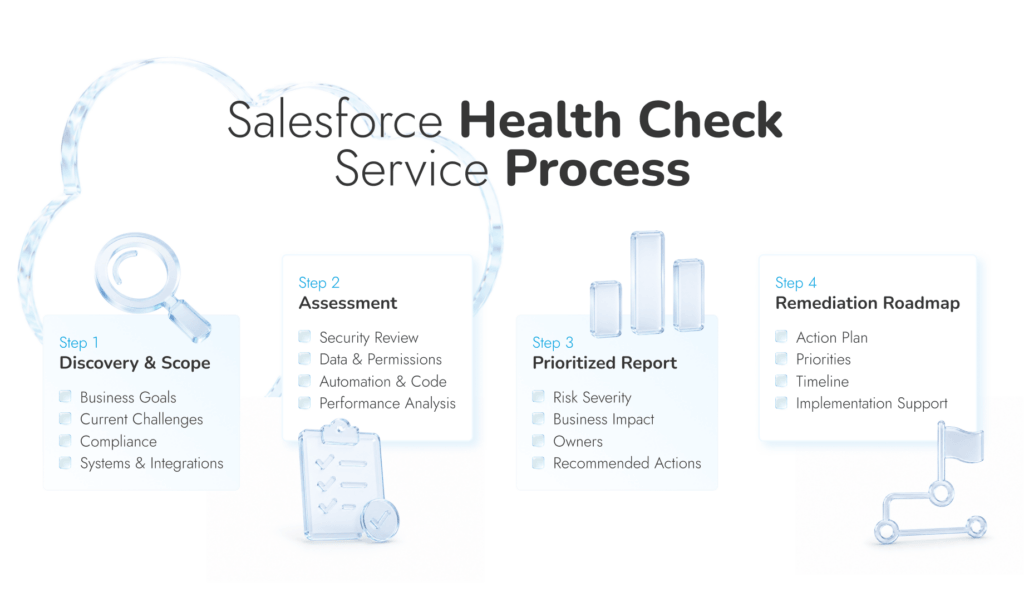
A normal engagement should include four stages:
Discovery and scope: The provider confirms the business goals, current problems, critical workflows, compliance needs, planned Salesforce changes, and the orgs, clouds, integrations, teams, and environments included in the audit.
Automated and manual assessment: Native and third-party tools provide part of the evidence. The reviewer should also inspect permissions, data, automation, code, architecture, integrations, usage, storage, packages, and technical debt by hand.
Prioritized report: Each health check CRM Salesforce finding should show its severity, business impact, affected components, dependencies, recommended action, estimated effort, and owner. Urgent security gaps shouldn’t be buried beside a field that nobody uses.
Remediation roadmap and support: Remediation could mean rebuilding permissions, repairing Flow or Apex, cleaning records, fixing integrations, removing old packages, testing changes, or tightening ownership. Make sure the scope says whether that work is included or starts after the audit.
You should also know who is reviewing the org, how exported evidence is protected, and exactly what reports you’ll receive.
Companies like Routine Automation run a security health check in Salesforce, and a wider org check moves through a careful step-by-step process. The team combines Salesforce diagnostics with manual analysis and conversations with the people who know where the CRM causes trouble.
The review follows seven stages:
1. Define what’s being reviewed: Confirm the business issue, included environments, essential processes, known risks, and work already on the roadmap.
2. Hear from the people using Salesforce: Interview admins, developers, IT, security, department leads, and everyday users.
3. Pull the org apart: Examine security, permissions, records, architecture, automation, code, integrations, storage, packages, licenses, and reporting.
4. Work out what matters: Separate harmless clutter from findings that expose data, damage reports, delay work, raise costs, or threaten releases.
5. Build the Salesforce Health Check report: Add proof, owners, dependencies, effort estimates, priorities, and recommended actions.
6. Map the fixes: Divide urgent repairs from cleanup, code changes, architecture work, and governance.
7. Stay for the repair work: Routine Automation can handle configuration, development, testing, deployment, and later reviews when needed.
The target isn’t a better native score. It’s an org that protects the right data, supports the way the company now works, and can be changed without every release becoming an archaeological dig.
Turn Findings Into a Working Plan
Get a prioritized roadmap for security, data, automation, integrations, and the fixes your team needs to tackle first.
Salesforce Health Check is worth keeping in the admin routine. It catches weak security settings quickly and gives the team something concrete to investigate. Just don’t let a 95% score end the conversation.
The percentage says very little about duplicate records, old Apex, competing Flows, broken handoffs, wasted licenses, or reports people stopped trusting months ago. Use the native tool for regular monitoring, then arrange a deeper review when the org becomes heavily customized, tied into critical systems, or weirdly stressful to change. That last one is usually the giveaway.
Routine Automation can help with the wider review, then stay involved for the workshop, technical planning, testing, and Salesforce work that follows.
Salesforce Health Check sits inside Setup and checks selected security controls against a standard baseline or one your company has imported. It gives you a score, then shows which password, session, login, IP, certificate, or token settings don’t match. That’s what most people mean by security health check Salesforce.
In Salesforce, open Setup, search for Health Check, then open the page. You’ll see the current score, the baseline behind it, and the settings pulling the result down. Don’t rush straight to Fix Risks. Read what each change affects first, especially around SSO and integrations.
The native results give you the numbers. The report needs the reasoning. Who owns the finding? What relies on the current setting? What’s the deadline? Why is the team fixing it now, parking it, or accepting the risk?
The native tool is. It won’t catch two Flows fighting over the same field, duplicate accounts wrecking a forecast, or an integration sending yesterday’s data. A wider health check CRM Salesforce review looks at those problems too, along with code, licenses, storage, backup, reports, and adoption.
Yes. A Salesforce admin can run the native check and deal with contained configuration issues. The job changes once a fix touches custom Apex, several orgs, SSO, regulated data, or a billing integration that absolutely cannot go down on a Tuesday afternoon. That’s when extra expertise earns its keep.
For the native security page, monthly or quarterly is reasonable. A broader review once a year suits a stable org. I’d bring it forward after a migration, major integration, permission overhaul, security incident, or any release that leaves the admin team saying, “Nobody touch that Flow.”
The native Health Check is included in supported Salesforce editions. A professional review has no sensible flat price because the work can range from one tidy org to several clouds, years of Apex, dozens of integrations, poor documentation, and regulated data. Scope decides the fee.