 Suomi
Suomi Français
 Deutsch
 Polski
Plan Salesforce Backup Before It Breaks
Talk with Routine Automation about backup planning, Salesforce setup, automation risks, and the technical choices your team needs before the next big change.



If your team still assumes that Salesforce is automatically saving, and protecting everything they’ll ever need, it might be time to take Salesforce backup best practices more seriously.
Without a clear SFDC backup plan, you’re probably leaving gaps in your data whenever someone deletes records, runs a bad import, breaks a deployment, or lets an automation chew through live data before anyone notices.
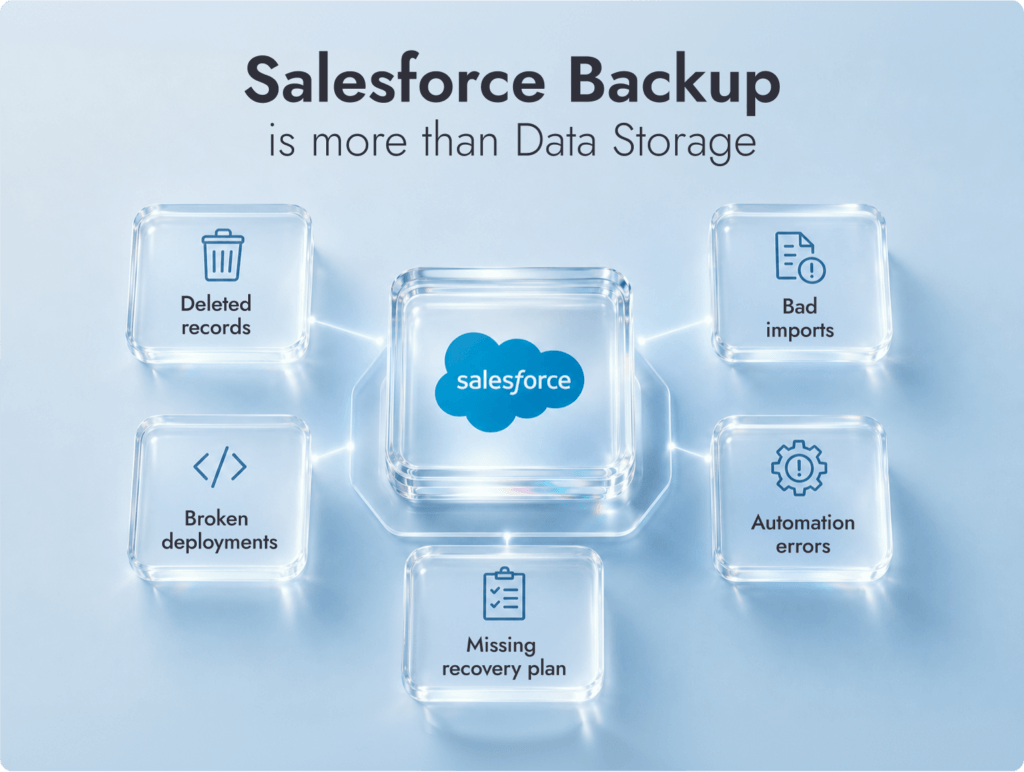
Salesforce’s own backup guidance talks about both copies and recovery, which is the part teams skip too often. This guide covers the backup options, tools, strategy, and recovery practices that actually hold up when the panic starts.
No, Salesforce doesn’t provide automatic, complete backups that customers can use for self-service recovery by default. Salesforce keeps the platform running, but your business is still responsible for making sure its records, files, metadata, and restore process are actually recoverable when someone makes a mistake.
There are a few native Salesforce backup options, but they’re limited:
Native option | What it does | Limitations |
Data Export Service | Lets admins export Salesforce data as CSV files on a weekly or monthly schedule | Export files must be downloaded and stored somewhere safe. Salesforce says export zip files are deleted 48 hours after the email is sent. It also doesn’t give you an easy metadata restore path. |
Recycle Bin | Lets users restore deleted records for a short window | Deleted items stay in the Recycle Bin for 15 days before Salesforce schedules them for permanent deletion. It won’t help with overwritten fields, broken automation, or metadata changes. |
Sandbox copies | A sandbox is handy when you’re testing a release or checking a change before it hits production. | They’re not a real Salesforce backup plan. The data can be old, partial, overwritten by a refresh, or missing the exact records you suddenly need. |
Salesforce Backup & Recover | This is Salesforce’s paid backup product for data, files, metadata, managed packages, and sandboxes. | It can help, but it still needs proper setup, permissions, retention rules, and restore tests. Buying it doesn’t mean the org is magically covered. |
Salesforce gives you pieces of a backup picture. It doesn’t hand you a complete, tested recovery plan unless you build one, buy one, and keep checking that it works.
A useful backup for Salesforce needs to protect two things: the records people touch every day, and the setup that makes those records work.
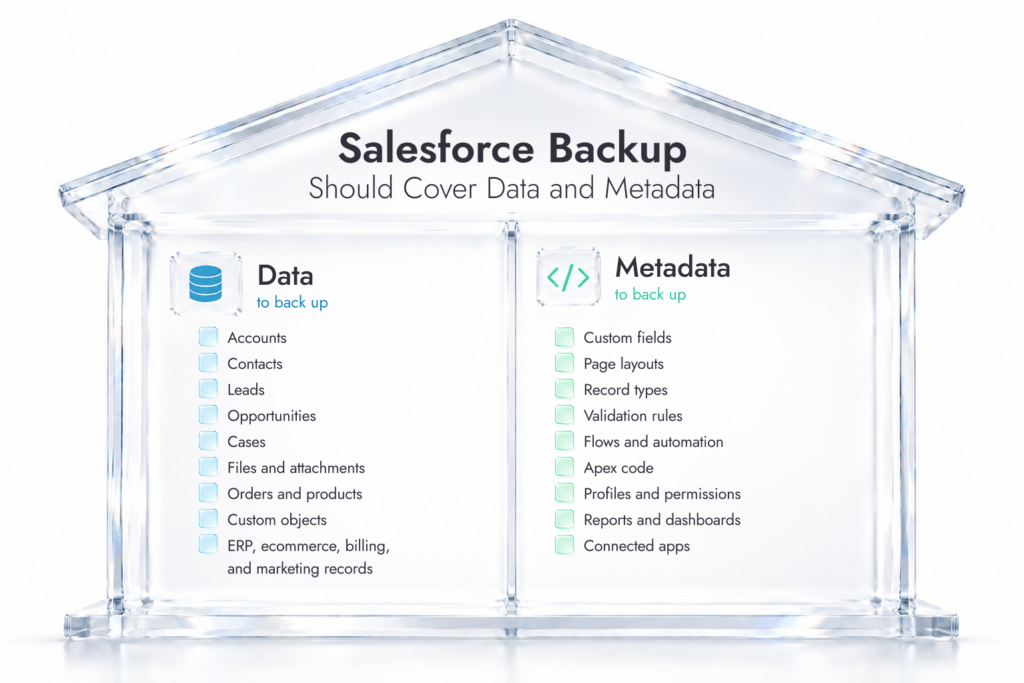
Data to back up:

Accounts
Contacts
Leads
Opportunities
Cases
Campaigns
Tasks and activities
Files, attachments, notes, and documents
Orders, subscriptions, products, price books, carts, and commerce records
Custom objects
Consent fields
Ownership, territory, queue, and assignment fields
Records coming in from ERP, ecommerce, billing, service, or marketing tools
Metadata to back up:

Custom objects and fields
Page layouts
Record types
Validation rules
Flows and automation
Apex code and triggers
Profiles
Permission sets and permission set groups
Sharing rules
Reports and dashboards
Lightning pages
Approval processes
Email templates
Connected apps
Named credentials
Custom metadata types
Experience Cloud settings, if you use them
Metadata is where teams get caught. Everyone worries about losing customer records, but a bad deployment can damage the structure around those records too. Metadata gives the org its structure, and after a data loss incident, metadata should be restored before the data goes back in. That’s why Salesforce data backup best practices should cover configuration, code, permissions, and automation from the start.
Protect Salesforce Before It Breaks
Need a second set of eyes on backup scope, metadata risk, or restore planning? Routine Automation’s Salesforce consulting services can help.
There are three main Salesforce backup options worth looking at: native Salesforce exports, Salesforce cloud to cloud backup tools, and custom API-based exports.
Method | What it covers | Limitations | Best for |
Native Data Export | Records in CSV files, including standard and custom object records | No metadata backup, weekly or monthly cadence, manual file handling, manual restore | Basic compliance snapshots or low-change orgs |
Cloud-to-Cloud Backup Tools | Data, metadata, files, relationships, and restore points | Paid tools, setup required, permissions need care | Most active Salesforce orgs |
Custom API Export | Fully custom object and dataset exports | Developer resources needed, API limits, restore logic still needs to be built | Complex, high-volume, or analytics-heavy orgs |
Native Data Export is the lightest option. It can export standard and custom object records to CSV, but it doesn’t back up metadata, and scheduled exports run every 7 or 29 days depending on edition.
Cloud-to-cloud Salesforce backup tools are the better fit once Salesforce feeds sales, support, finance, ecommerce, or reporting. They can run daily backups, capture metadata, restore smaller chunks, seed sandboxes, store copies outside Salesforce, and flag failed jobs.
Custom API exports are useful when the org has unusual data volumes, warehouse requirements, or very specific retention rules. Just be honest about the trade-off: you’re not buying a recovery process, you’re building one. Backup choices should really be made during setup or redesign work, which is why teams often review them alongside Salesforce implementation services.
There are plenty of Salesforce backup tools out there. The “best” one depends on how messy your org is, how much metadata changes, how fast you need to restore, and who’s going to own the process after setup. Routine Automation doesn’t sell its own backup product, but we help teams choose, configure, test, and manage the right setup.
Tool | What it does well | Good fit when |
Gearset | Covers Salesforce data and metadata backup, with restore features that sit close to DevOps and release work | Your team wants backup tied to deployment safety, metadata comparison, and release control |
Salesforce Backup & Recover / Own from Salesforce | Salesforce’s backup product, formerly Own Recover, with daily backups for data, files, metadata, managed packages, and sandboxes | You want a Salesforce-owned route and prefer to keep backup planning close to the Salesforce product stack |
AutoRABIT Vault | Backs up Salesforce data and metadata, with granular restore and compliance-focused controls | You have strict governance, DevSecOps needs, or a heavily customized org |
Spanning Backup | Gives Salesforce admins automated daily backup and restore for data and metadata inside the Salesforce interface | You want a familiar admin experience without building a custom process from scratch |
Druva | Provides automated daily backup for data and metadata, with air-gapped storage and point-in-time recovery | You want off-platform storage, granular recovery, and broader SaaS backup coverage |
Gearset is worth looking at if backup and release management are closely linked. The Salesforce backup product protects both data and metadata by creating copies that can be restored if something is lost, corrupted, or changed by mistake.
Salesforce Backup & Recover deserves a separate mention because OwnBackup is now part of Salesforce’s own product family. Backup & Recover, formerly Own Recover, protects CRM data from loss and corruption, and teams can create daily backups of data, attached files, metadata, managed packages, and sandboxes.
AutoRABIT Vault fits teams that treat Salesforce like code, not a giant spreadsheet. It backs up data and metadata, then lets admins pull back a field, object, or record set without shoving the whole org into reverse.
Spanning Backup is a cleaner fit for admin-led teams that want a daily Salesforce data backup strategy inside Salesforce. It protects Salesforce data and metadata with automated daily backup and restore functionality, plus sandbox seeding.
Druva is worth a look when backup copies need distance from Salesforce. It backs up data and metadata each day, stores copies away from the main environment, and lets teams recover from a specific point in time.
A Salesforce backup strategy needs to cover the ugly details. Which objects matter? How many hours of lost work can the business stomach? Who gets paged when last night’s job failed? Who’s brave enough to approve a restore?
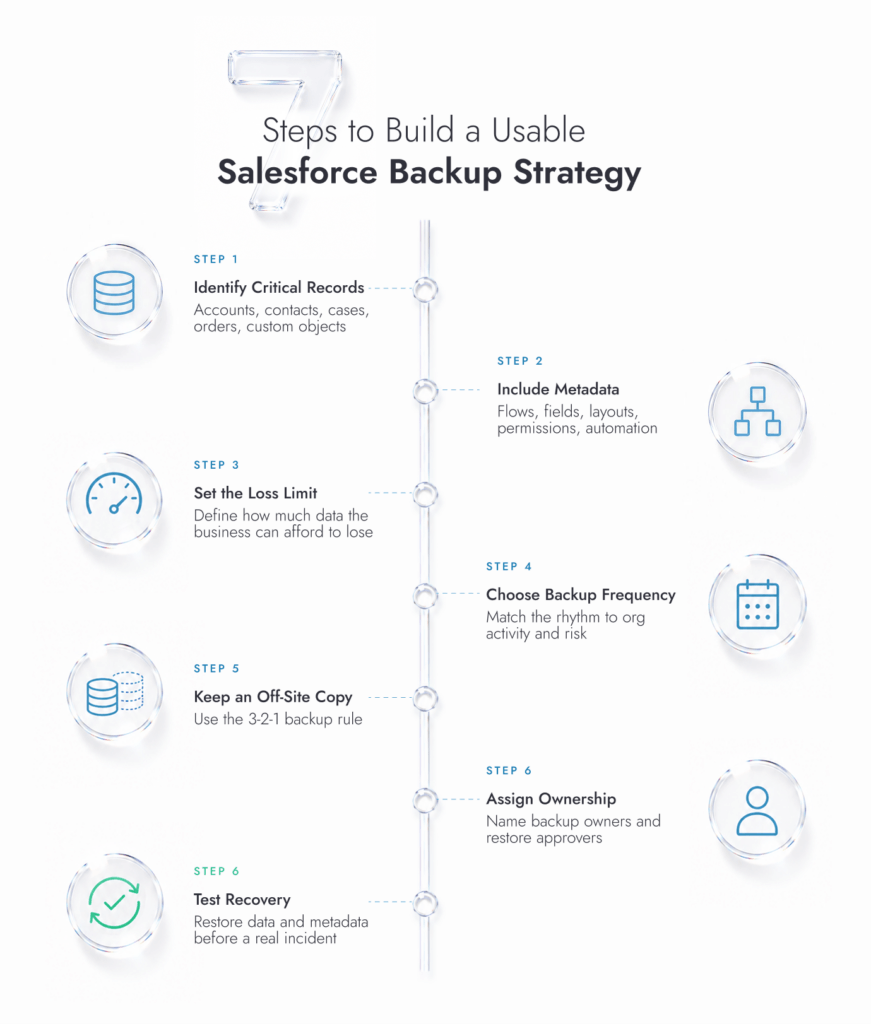

STEP 1
Accounts and Contacts are obvious. So are Leads, Opportunities, Cases, files, activities, orders, products, carts, price books, subscriptions, and custom objects. Don’t forget the records fed by ecommerce, billing, ERP, support, and marketing to

STEP 2
Flows, fields, page layouts, validation rules, profiles, permission sets, reports, dashboards, Apex, connected apps, and record types all need coverage. Metadata is the shape of the house. Restoring the furniture doesn’t help much if the walls moved.

STEP 3
Don’t pick a backup schedule because it sounds sensible. Ask what would actually hurt. One lost hour? A morning of case updates? A full day of pipeline changes? If the business can only lose four hours of work, Salesforce backups need to run at least every four hours. A daily backup means a bad day could cost a full day of changes.

STEP 4
For active Salesforce orgs, daily data backup in Salesforce is a fair baseline. For metadata, weekly is the floor, plus a fresh backup before every deployment, import, Flow change, permission update, sandbox refresh, or integration change. Consider on-demand backups before risky releases and Salesforce upgrades.

STEP 5
A sandbox can help with testing. It isn’t a rescue plan by itself. Salesforce’s own backup guide recommends the 3-2-1 rule: three copies, two storage types, and one off-site copy. That’s a good rule because Salesforce problems, admin mistakes, and sync errors shouldn’t all be able to touch every copy at once.

STEP 6
Someone owns backup health. Someone checks failed jobs. Somebody else reviews access. Someone approves a restore. The plan can have backups and deputies, sure, but it can’t live in that dangerous place where everyone assumes someone else is watching it.

STEP 7
A backup for Salesforce that’s never been restored is a guess. Test it in a sandbox. Restore a few records, a related set of records, and a metadata change. Check ownership, relationships, permissions, reports, and automation afterward. Salesforce lists recovery testing as a backup best practice, and Gearset recommends testing recovery every three months and after major team changes. It also makes sense to run a Salesforce Health Check after significant configuration changes or before major releases. Reviewing security settings, permissions, session policies, and overall org configuration alongside your backup strategy helps catch issues that could affect both recovery and day-to-day platform stability before they become production problems.
Run Salesforce With Less Risk
Get backup coverage, automation risk, restore planning, and ownership reviewed before your next Salesforce change turns into a cleanup job.
The main Salesforce data backup methods are scheduled exports, API pulls, sandbox copies, and automated backup tools. They all have a place. Some are just a lot more useful when things are actually on fire.

Scheduled exports: Salesforce’s Data Export gives you CSV files on a weekly or monthly schedule. It’s cheap and familiar, which is why teams keep using it. The catch is that CSV files don’t restore relationships cleanly, don’t cover metadata properly, and still need someone to download, store, secure, and test them.
API-based pulls: REST API and Bulk API exports give developers more control over what gets copied and when. Bulk API 2.0 is built for large data jobs and bulk queries, so it fits high-volume objects better than clicking around in export screens. The trade-off is ownership. Someone has to build the jobs, watch API limits, handle failures, and work out how restore will happen later. For this method it makes sense to work with a Certified Salesforce partner.
Sandbox refreshes: A sandbox can act as a secondary copy of some Salesforce data and metadata, but I wouldn’t trust it as the main safety net. It can be out of date, partial, refreshed over at the wrong time, or missing the exact records you need.
Third-party automated sync: This is where serious data backup in Salesforce usually lands. These tools can run backups on schedule, capture metadata, preserve record links, and give admins a cleaner way to restore the right piece instead of digging through CSV files.
A quick way to think about it: exports are fine for evidence. APIs are fine when you have developers. Automated backup tools are better when the business needs recovery, not just a folder full of files.
How often does Salesforce backup need to happen? Match the schedule to the amount of change your team can afford to lose.
For active sales or support orgs, daily data backups are the floor. If reps are updating pipeline all day, support teams are closing cases, or customers are placing orders through connected systems, a weekly export is basically a bet that nothing important will break between runs.
Fast-moving orgs need more than a daily checkpoint. Opportunities, Cases, Orders, carts, customer profiles, inventory-linked records, and revenue-heavy custom objects can change too quickly for that. In those cases, hourly or near-real-time backup starts to look less paranoid and more sensible.
Metadata needs its own rhythm. Weekly metadata backups are a reasonable baseline, but every deployment should get a fresh snapshot before anything changes. Same for Flow edits, permission updates, imports, sandbox refreshes, integration changes, and bulk updates.
The best Salesforce backup plan is painfully practical. It tells an admin what gets copied, when it runs, who owns it, and what to do when someone needs a restore late on a Friday.
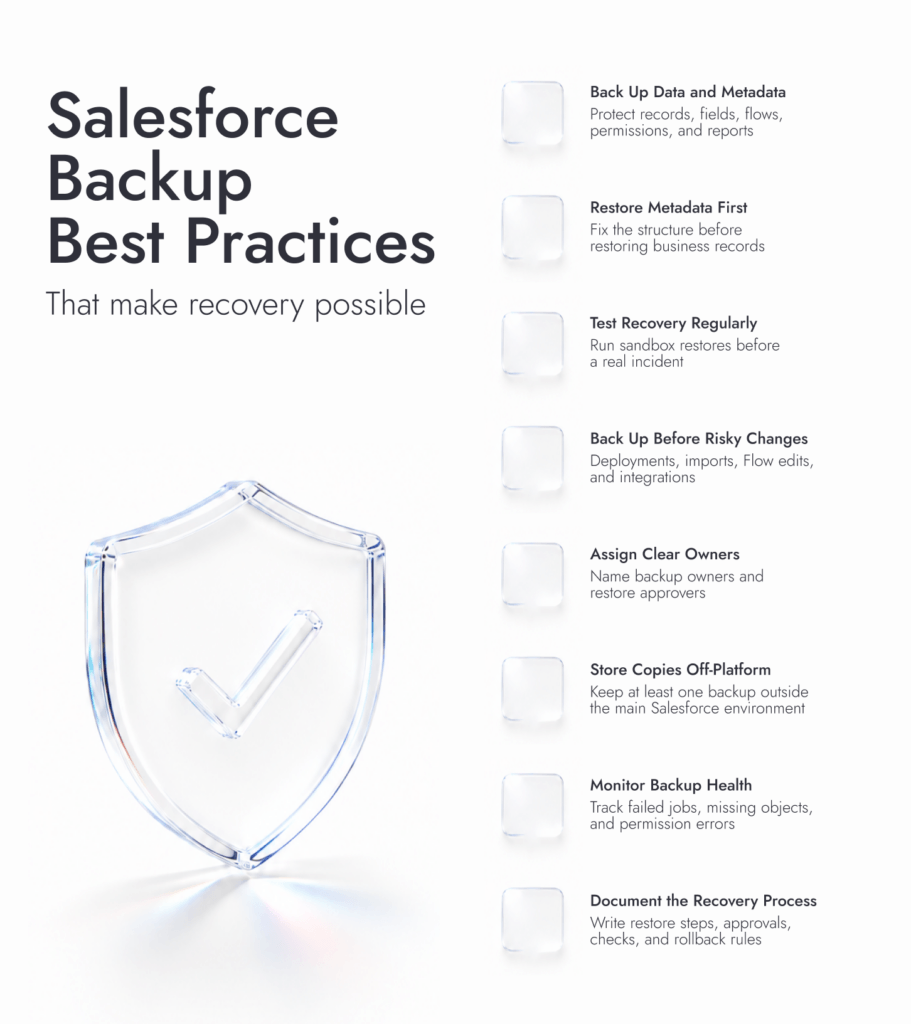
Back up data and metadata as separate recovery problems
Data is the record: the Account, Contact, Opportunity, Case, order, file, or custom object. Metadata is the machinery around it: fields, flows, layouts, Apex, permissions, validation rules, and reports. Metadata gives Salesforce data its working structure, so restoring records without the matching setup can still leave the org half-broken.
Restore metadata first when the structure changed
If a deployment damages flows, permission sets, or page layouts, putting the data back first can make the cleanup worse. Restore the configuration layer first, then return the records into a structure that can actually hold them.
Test the restore process, not only the backup job
A green backup status doesn’t prove much. Run a test restore for one of your backups for Salesforce in a sandbox, check relationships, ownership, lookup fields, reports, and automation afterward. Salesforce lists recovery testing as a backup best practice, and Gearset recommends testing the recovery plan every three months and after major team changes.
Take a fresh backup before every risky Salesforce change
Do this before deployments, Flow edits, permission changes, bulk imports, large Data Loader jobs, integration updates, and sandbox refreshes. Use on-demand Salesforce backups before mass imports, major deployments, and integration changes.
Name the backup owner and the restore approver
“The admin team” won’t help much when production is broken. Name the person who sets up backups, the person who checks failures, the person who can approve a restore, and the people allowed to touch sensitive backup data. Don’t let the whole plan live in one admin’s head.
Store backups outside Salesforce
A sandbox copy is better than nothing, but I wouldn’t bet the business on it. Salesforce recommends three copies, two storage types, and one off-site copy. Admin mistakes and sync errors move fast, so at least one copy needs to sit somewhere safer.
Monitor backup health, not just whether a job ran
A SFDC backup can run and still miss a restricted field, a new custom object, or a file type someone forgot to include. Watch job failures, object-level coverage, strange deletion spikes, permission errors, and API issues. Use job history and alerts as a way to spot unusual Salesforce changes before they turn into a bigger recovery problem.
Use versioned metadata backups
Version history lets the team roll back a single Flow, field, permission change, or report change without guessing what someone edited last Tuesday. This is especially useful for orgs with frequent releases, multiple admins, or CI/CD work.
Set retention rules that match the business and the law
Retention is where backup plans get messy. How long do copies stay? Who can see them? Who deletes them when rules say they need to go? With GDPR, HIPAA, SOX, or internal audit rules in play, backup storage can’t become a side closet full of customer data.
Write the recovery procedure like someone else will need it
The runbook should cover restore order, object dependencies, approval steps, validation checks, user communication, and rollback rules. This is also where backup planning should connect with imports and migration work, especially if the team is already using Salesforce Data Migration best practices to avoid corrupting clean data during a move.
Salesforce backup mistakes are easy to miss, but the impact can be huge. The top Salesforce consulting companies can often help teams avoid painful errors.
Mistake | What actually happens | Better move |
Relying only on Recycle Bin | Recycle Bin is useful when someone deletes the wrong record. That’s about where the comfort ends. It won’t fix overwritten values, broken metadata, or a bad Flow, and deleted items only stay there for 15 days. | Treat Recycle Bin as a last-minute save. |
Skipping metadata backup | The data comes back, but the fields, layouts, flows, profiles, or permission sets around it are wrong. That’s when a “restore” still leaves users unable to work properly. | Back up metadata before releases, imports, permission changes, and automation edits. |
Assuming Salesforce owns full recovery | Salesforce protects the platform, but your business still owns its records, metadata, backup access, retention rules, and restore process. | Build a customer-owned recovery plan with named owners and tested restore steps. |
Using only manual exports | CSV files get forgotten, expire, sit in someone’s downloads folder, or fail to preserve relationships in a clean restore. Data Export zip files are deleted 48 hours after the email is sent. | Use automated backup where Salesforce is tied to revenue, service, compliance, or reporting. |
Never testing restores | Backups feel reassuring right up until someone has to use them. If the team hasn’t tested restore order, approval, relationships, and validation checks, it’s guessing. | Do the test in a sandbox while nobody’s panicking. |
The worst cases are rarely “someone deleted one Contact.” They’re bad imports overwriting Opportunity values, middleware pushing the wrong sync rule, or a Flow changing records for hours before anyone catches it.
Learning how to backup Salesforce data is one thing, ensuring you can trust the backups is another.
A company should bring in a Salesforce backup expert when backup planning stops being a simple admin task. That usually happens when the org has custom objects everywhere, several systems writing into Salesforce, strict retention rules, multiple orgs, or a release process that moves faster than the admin team can comfortably police.
In-house teams struggle most when they have limited Salesforce admin bandwidth. Usually, they’re already buried in user requests, field changes, dashboard fixes, access issues, Flow edits, and the occasional “can you just import this spreadsheet quickly?” message that should make everyone nervous.
Expert support or Salesforce consulting services from a company like Routine automation are also worth considering before a migration, B2C Commerce setup, ERP connection, HubSpot sync, large data cleanup, or AI/Agentforce rollout. Backup planning should happen before those projects touch live records, not afterward.

Need Backup Help?
Bring in Salesforce developers to review backup gaps, metadata risk, permissions, integrations, and recovery steps before your next change hits production.
Mastering Salesforce Backup and Recovery Best Practices for Real Admin Work
Salesforce won’t save you from every bad import, deleted record, broken Flow, or messy sync. It keeps the platform available, but your company still owns the recovery problem. That’s the part people usually discover too late.
Data backup methods in Salesforce need more than a scheduled export. You need the right tool, data and metadata coverage, someone checking the jobs, restore tests that actually happened, and a habit of reviewing the setup when Salesforce changes. New objects, new automations, new integrations, new users with broad permissions. All of those can change the risk.
The best Salesforce backup is the one nobody has to debate during a crisis. The team knows what copy to use, what gets restored first, who signs it off, and how to check that Salesforce is safe to work in again.
Salesforce gives you a few safety nets, but don’t confuse those with a full recovery plan. Data Export gives you files. Recycle Bin can rescue some deleted records for a short period. Neither one rebuilds a broken Flow, restored permissions, overwritten fields, or a messy bulk import on its own.
Don’t start with the tool. Start with what would hurt: customer records, sales data, case history, files, orders, and custom objects. Then cover the Salesforce setup behind them, including fields, layouts, permissions, reports, and automation.
Gearset, Salesforce Backup & Recover, AutoRABIT Vault, Spanning Backup, and Druva are common options. The logo matters less than the restore test. Can it recover metadata? Can it restore one record set? Can your admin use it without a war room?
For a quiet org, daily may be enough. For sales, service, ecommerce, or anything with heavy integrations, daily is the floor, not the target. The question behind how often does Salesforce backup is blunt: how many hours of lost updates would your team be willing to explain?
Data is the stuff users see and update: Contacts, Accounts, Cases, Opportunities, files, orders, and custom object records. Metadata is the setup that makes that data usable: fields, Flows, layouts, permissions, reports, dashboards, and code. Lose the metadata, and the records may come back into a system that doesn’t behave properly.
Bring in outside help when backups for Salesforce touch custom objects, multiple orgs, strict retention rules, integrations, or a thin admin team. It’s also worth doing before a migration, major import, new automation, or big Salesforce rebuild. Those are the moments where a weak backup plan gets exposed fast.